Subsonus Tag Device Addresses
It is possible to track as many targets as required from a single surface Subsonus unit (which comes at a compromise of interrogation frequency per device). Every Subsonus Tag being operated within a 3km radius must have a unique address otherwise communication collisions will occur. If only one Subsonus Tag is to be tracked, this section can be disregarded as the factory default unit addresses will work out of the box.
Subsonus will assign addresses sequentially from its list of known devices. A Subsonus Tag assigned an address of 0 (default) will automatically be assigned an address by the first Subsonus that discovers it acoustically.
For information on how to assign a device address, see Configuration
Device Address Identification
To determine the Subsonus device address, the unit must be powered and connected to the Subsonus web UI.
-
Open the local Subsonus web interface
-
Navigate to “Configuration”→”Devices”
-
The number next to the device is the device address. For example, the following Subsonus has a device address of 1:

Device Address Identification
If there are any other devices configured to be tracked by the surface Subsonus, these devices will also appear on this page, with their respective device addresses.
To determine the device address of a Subsonus Tag that has not been configured to be tracked by a Subsonus, check the display (see Electronic Paper Display). Alternatively, it can be checked in the Subsonus Tag Manager App.
-
Open the Subsonus tag Manager app
-
Navigate to the Menu→“Configuration”→“Devices”
-
The device address is shown. For example, the following Subsonus Tag has a device address of 12:
-
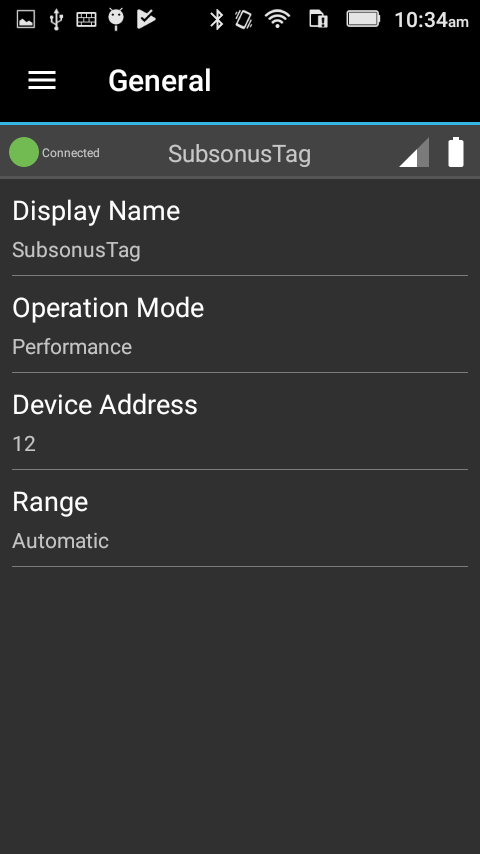
Subsonus Tag Manager general tab
Hot Swap
Subsonus Tag can be swapped out for another device with the same device address, for example a change to a fully charged battery. The tracking history and tracking configuration in the Subsonus will persist to the new Tag.
Device Address Conflict
Subsonus Tag needs to have a unique Device Address to communicate. If multiple devices have the same Device Address a conflict will occur. Conflicts can only be resolved by changing the Device Address of one of the devices or by removing a device from the conversation. A Subsonus Device Address can be changed locally on the Subsonus Tag using Bluetooth or remotely via acoustics from the Master Subsonus.
Device Address Conflict Display in Subsonus
Devices with Address conflicts will be displayed on the “Configuration”→”Devices” page. Devices with conflicting addresses will be indicated by a red “alert” icon alongside the entry in the device list. Subsonus cannot track multiple devices on the same Device Address, if two or more tracked targets share a Device Address, the conflict must be resolved before tracking can continue. To resolve a conflict the Device Address of all the devices must be made unique.